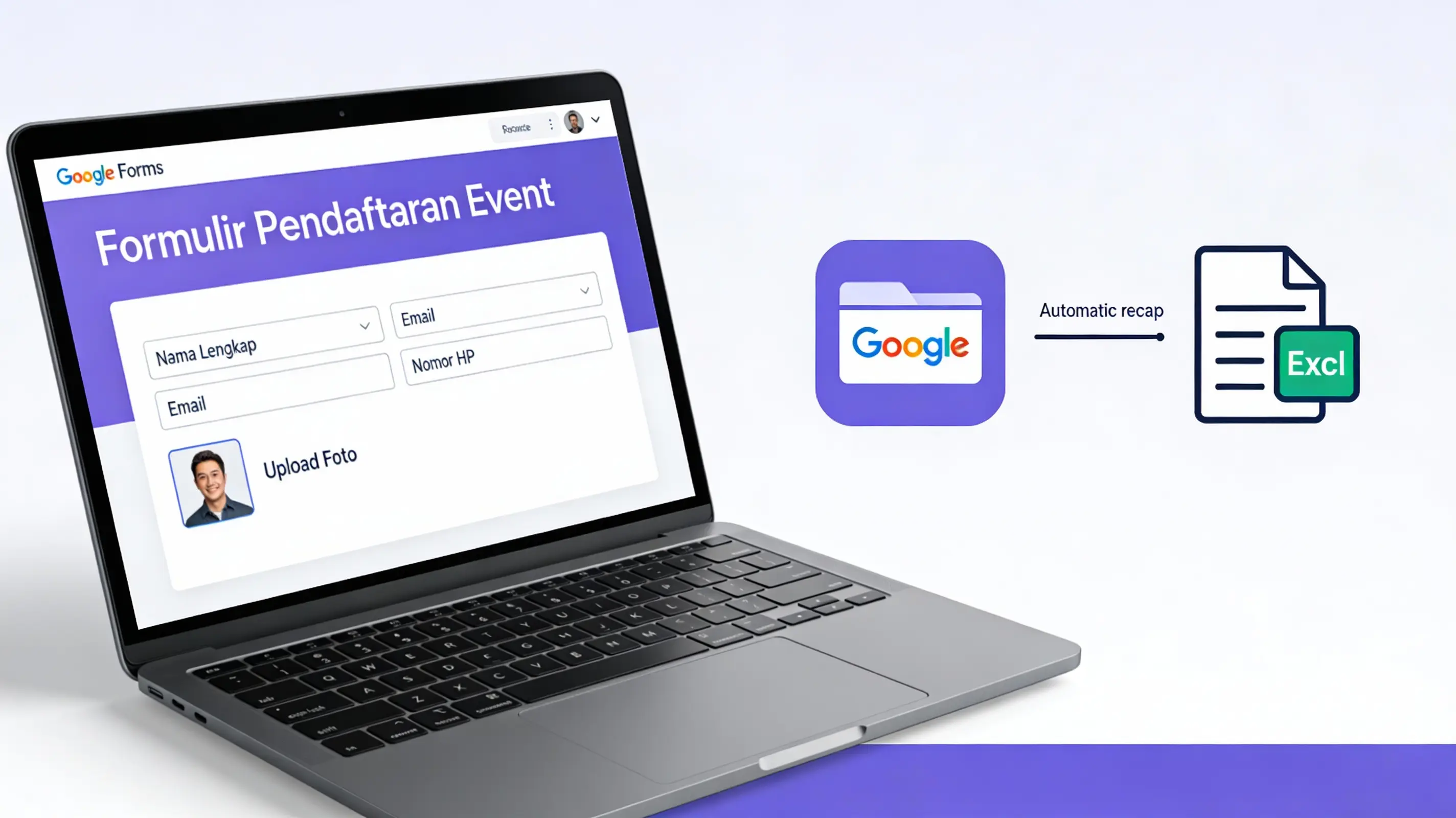
How to Create an Online Registration Form in Google Forms: Free & Auto-Recap to Excel
Want to create a registration form for an event or seminar without hassle? Switch from manual methods to a Google Form based workflow that is faster, safer, and easier to manage.
In the digital era, paper-based registration is inefficient and prone to data loss or misplacement, while Google Forms stores everything in the cloud and can be accessed anytime. Google Forms is a free tool that lets you build professional forms in minutes, complete with data validation, photo upload, and automatic export to Excel for further processing.
Below is a practical step-by-step guide to creating a functional online registration form that your participants will find easy to use.
1. Preparing the Storage Folder
Start with proper file management so your form and uploaded files stay organized in Google Drive.
- Open Google Drive and sign in with your Gmail account.
- Click New > Folder, then name it something like "Seminar Participant Data" so it is easy to recognize.
- Open that folder before creating your form so the form file and related assets are saved there by default.
This structure makes it easier to locate your form, its linked spreadsheet, and any uploaded files later.
2. Creating a New Google Form
Once your folder is ready, you can create a blank form directly inside it.
- In the folder, click New > Google Forms > Blank form.
- Change the form title by clicking "Untitled form" and enter a clear name such as "Digital Workshop Registration Form".
- Add a brief description under the title so registrants understand the purpose of the form and what information is required.
This basic setup gives your form a professional appearance and context for users.
3. Designing the Questions
Well-structured questions make your form concise but complete and improve data quality.
- Full Name: Use the Short answer question type and enable Required so respondents must fill it in.
- Place & Date of Birth:
- Use Short answer for place of birth.
- Use the Date question type so respondents can select from a calendar, ensuring consistent date formatting.
- Single-choice fields: Use Multiple choice or Dropdown for fields like Gender or Highest Education to standardize responses.
- Multi-select fields: Use Checkboxes for questions where more than one answer is allowed, such as "Skills you possess".
You can add validation rules or additional descriptions to guide respondents and reduce input errors.
4. Adding a Photo Upload Field
Use the File upload question type to collect profile photos or payment proof directly through the form.
- Click Add question (+) on the right toolbar, then change the question type to File upload from the dropdown.
- When prompted, click Continue to allow file uploads to your Google Drive.
- Configure the upload settings:
- Turn on Allow only specific file types and choose Images for passport-style photos.
- Limit the number of files (typically 1 per respondent).
- Set a maximum file size such as 1 MB or 10 MB to control storage usage.
All uploaded files are stored in a dedicated folder in your Drive associated with the form, keeping them centralized and easy to access